


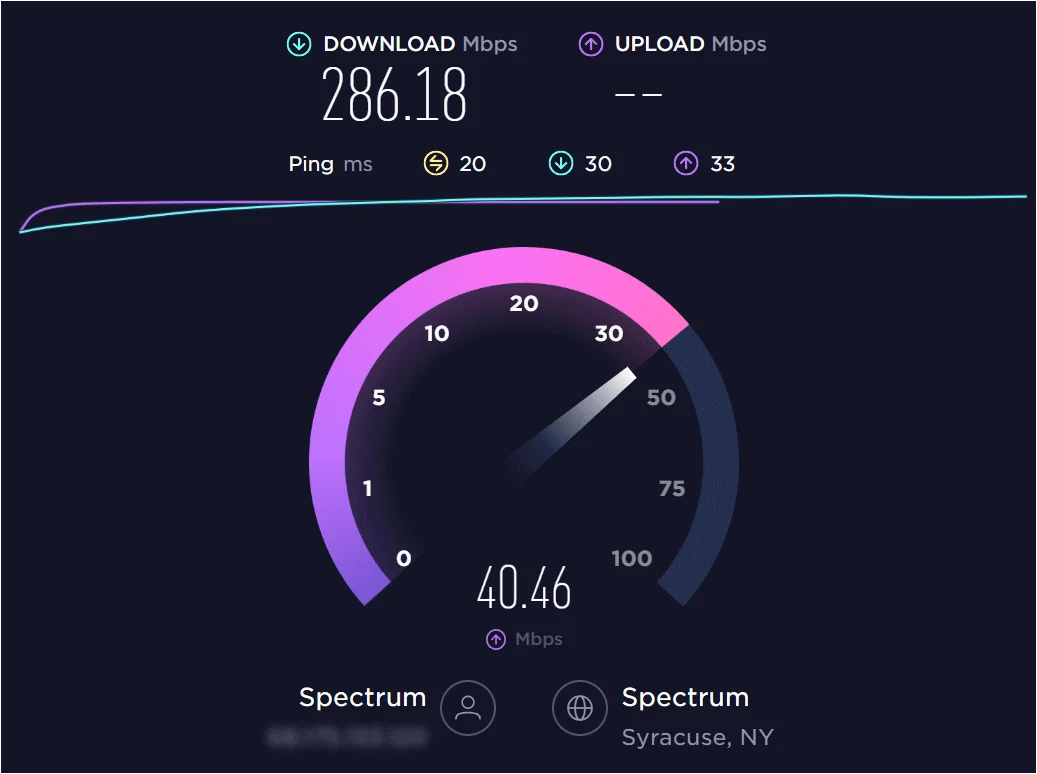
As multi-gigabit broadband plans and Wi-Fi 7 become the standard, standard tests can give inaccurate readings. Here is how to isolate your connection, test accurately, and understand your data.
TECH DESK — With smart appliances, cloud-based environments, and modern multi-gigabit connections filling our homes, a slow internet connection can disrupt your entire day. But when your stream buffers, is the problem actually your service provider, or is it an overloaded local router?
Add businessleague.in as a Preferred Source


Checking your true internet speed involves more than just clicking a single button. As high-speed configurations become common, standard browsers can struggle to measure modern throughput. This article provides a clear, step-by-step guide to testing your connection accurately, identifying network metrics, and determining whether you are getting the bandwidth you pay for.
Also Read | Automated Insurance Settlement: Inside the Aarogya Setu 2.0 App Features Architecture
1. The Core Metrics: What Do the Numbers Mean?
Before initiating a test, you need to know how to read the resulting diagnostic log. Modern speed applications measure more than simple download rates; they track four crucial pillars of network health.
Core Network Performance Matrix:
📥 Download Speed (Mbps/Gbps) ➔ Data delivery time (Streaming, downloading files)
📤 Upload Speed (Mbps/Gbps) ➔ Outbound transmission time (Video calls, cloud backups)
⏱️ Ping / Latency (ms) ➔ Network response interval (Lower is better for live gaming)
📊 Jitter (ms) ➔ Stability of data packets (High jitter causes choppy video)
| Metric Name | Measurement Unit | Optimal 2026 Target | Real-World Impact |
| Download Speed | Megabits per second (Mbps) or Gigabits (Gbps) | 100+ Mbps for standard homes; 1+ Gbps for power users. | Controls how quickly web pages load, files download, and 4K/8K media streams. |
| Upload Speed | Megabits per second (Mbps) or Gigabits (Gbps) | 20+ Mbps for asymmetrical lines; matched 1:1 for fiber. | Affects your presentation quality on corporate video calls and cloud photo sync times. |
| Ping (Latency) | Milliseconds (ms) | Under 30 ms (Excellent); over 100 ms causes noticeable lag. | The response time of your connection. Crucial for real-time actions like gaming or financial trading. |
| Jitter | Milliseconds (ms) | Below 5 ms. | Measures the variability of your ping. High jitter makes voice calls clip and stutter. |
2. Step-by-Step Guide to a Flawless Speed Test
To get an accurate baseline of your internet connection rather than a clogged local loop, follow this sequence precisely.
Also Read | Automated Insurance Settlement: Inside the Aarogya Setu 2.0 App Features Architecture
Also Read | Automated Insurance Settlement: Inside the Aarogya Setu 2.0 App Features Architecture
3. Advanced Troubleshooting: What to Do If Your Speeds Are Slow
If your real-world test logs display numbers far lower than what you pay your Internet Service Provider (ISP) to deliver, the issue usually stems from one of three areas.
First, look at your hardware limits. If you have upgraded to a multi-gigabit fiber line but are using an older Wi-Fi router, the router’s physical ports may top out at 1,000 Mbps, bottlenecking your service. Upgrading to a modern system can quickly resolve this issue.
Second, check for service outages. Leading platforms like Ookla have integrated live outage tracking directly into their interfaces, allowing you to quickly check if platforms like Microsoft Teams, PlayStation Network, or local telecom providers are down.
Pro Tip on Hardware Reboots: Before placing a frustrating call to your ISP’s support line, perform a full power cycle. Unplug both your modem and wireless router from the wall for exactly 60 seconds. This clears the system cache and forces the hardware to reassign local IP pools, which frequently recovers 20% to 30% of degraded speeds caused by hardware fatigue.
Also Read | Automated Insurance Settlement: Inside the Aarogya Setu 2.0 App Features Architecture
Add businessleague.in as a Preferred Source

